What is Proxymind
Using Proxymind
- How do I attach a note to a location?
- How do I define 'Here' and 'Nearby' distances?
- How do I sort my notes?
- How do I use a focus for filtering?
- How do I export a note?
General
What is Proxymind?
What is the idea behind Proxymind?
The idea behind Proxymind is quite simple: Proxymind is about location based filtering of your notes. A note can be everything from a list of errands, some tasks you have to do at work or a quote you found somewhere. In our example we focus on errands. Imagine you are at work and your Proxymind setup looks like this:

Every named location on the map represents a note. The inner circle is everything in 'Here' distance, the outer circle shows everything in 'Nearby' distance. From Proxymind's point of view, the 'Nearby' distance looks like this:

Please note, that the 'Nearby' focus does not only show errands but everything in 'Nearby' distance. So, we may need some filtering to focus on errands only.
Notes can be tagged. In the example map above the tags are represented by a color. For example, the tag 'Errand' is displayed as a green note in the map. Based on this information Proxymind can easily compile a list of 'Errands' you may shop on a work break:

If you now leave work and walk through the city, the contents of a focus will change!

The contents of the 'Errand' focus will now look like this:

From this example you can see, Proxymind is not about doing scheduled tasks, it's about things you can do nearby.
To use Proxymind in this way, you need to now how to attach a location to a note, how to mark a note as done and how to use focuses for filtering. You may also like to set the 'here' and 'nearby' distances to values useful for your personal application of Proxymind.
Using Proxymind
How do I attach a note to a location?
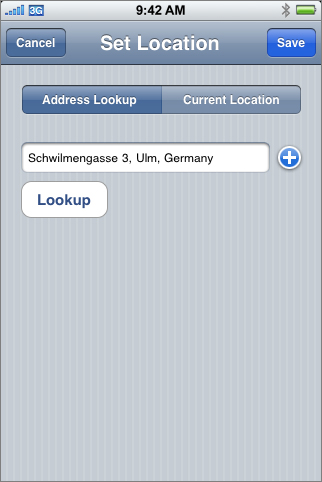
Open the note and tap on the "Location:" line at the bottom. The Location Editor will open. There are two ways to set the location:
- If you know the address of the location use the "Address Lookup" tab. Enter the address in the text field and press the "Lookup" button. You may also use the "+" button to choose the address from your address book. You need network access to make this work.
- If you're just standing at that location, use the "Current Location" tab and press the "Start Capture" button. Proxymind will start to determine your current location. The findings are displayed in the bottom part of the view.
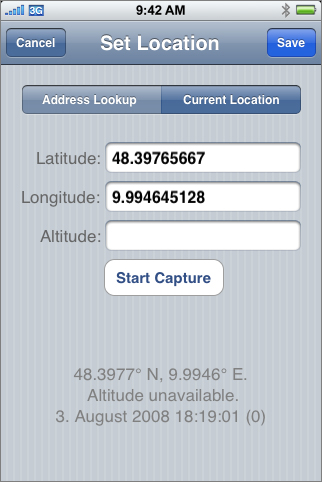
Leave the Location Editor using the "Save" button to attach the location to the note.
How do I define 'Here' and 'Nearby' distances?
To setup the 'here' and 'nearby' distances, open the "Settings" application of your iPhone or IPod Touch and look for the "Proxymind" settings. You can also set the distance unit (Foot, Meter) at that place.
How do I sort my notes (alphabetically or by distance)?
You toggle the sort mode (and thereby the distance filtering of the focuses) using the Location Services button in the toolbar:

- If the location services are not running, the contents of the view is sorted alphabetically.
- If the location services are running (blue background of the button), the contents of the view is sorted by distance to your current location.
How do I use a focus for filtering?
Focuses can be used to filter your notes by tag, by distance or both. This way you can focus on a subset of your notes. For example, you may create an "Errands" focus holding only errands that are 'nearby'.
To edit focuses, press the "Edit" button in the navigation bar of the Focus view:
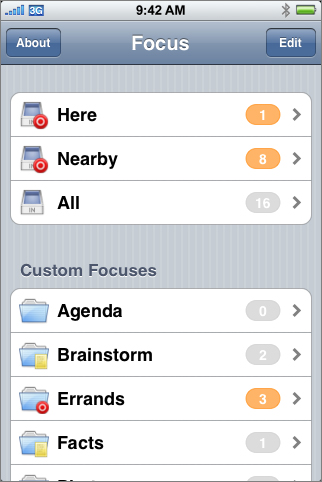
Tap on a focus you want to edit or create a new focus using the "New Focus" row. The focus is displayed in edit mode:
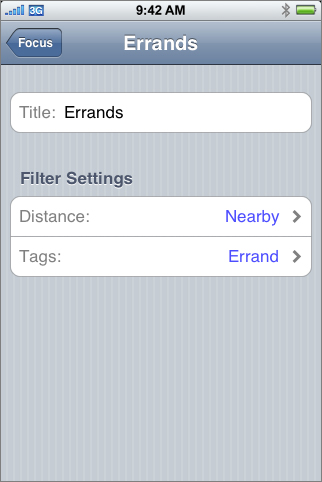
Next to the title of the focus there are two important values you can specify to define the filtering of a focus.
-
Distance: A note within this distance will be visible in the focus.
If distance information are needed by the focus the location service is automatically turned on and off. There are two special values here: A 'Default' distance means, the focus does not change the current status of the location service.
A value of 'none' means, the location services are switched off when you enter this focus. This setting is good for focuses holding notes that don't need a location. For example, a 'Quotes' focus holding some of your favorite quotes don't need a location.
- Tags: Choose the tags a note must be tagged with to be visible in the focus.
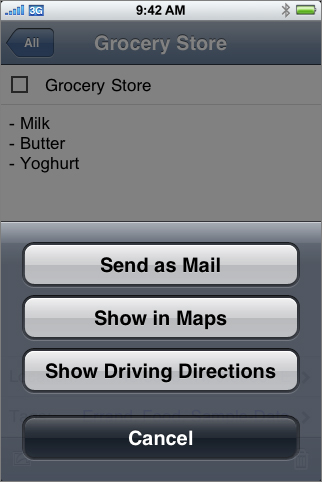
Use the "Send as Mail" action from the toolbar in the Note Editor. If the note has an attached location, additional location information along with a link to Google Maps will be added to the mail.
General
How can I do a save software update of Proxymind?
There is a known issue in iPhone OS / iTunes that can lead to data losses when installing a software update.
Please follow the procedure below to prevent data losses until Apple has resolved the issue. Note that this procedure works equally well for all iPhone applications, not just Proxymind.
- Sync your iPhone with iTunes just before you install any update.
- Disconnect your iPhone and install the update on the device.
- If you didn't lose your data, all is fine. If you did lose your data, you can restore it from the backup. But you have to be very careful. When you connect your iPhone to your computer, iTunes automatically overwrites the existing backup with a new one. Since you just lost your data on the device, this will effectively delete your previous backup from iTunes! To prevent this, you need to do the following:
- Disable automatic syncing for your iPhone in iTunes' preferences before you connect the iPhone again (iTunes > Preferences > Syncing > Disable automatic syncing for all iPhones and iPods).
- Connect your iPhone and wait until it appears in iTunes' sidebar. Since syncing is disabled, iTunes won't back up your data automatically.
- Right-click (or control click) on the iPhone and select "Restore from backup".
How can I pose some questions to fill this FAQ?
Easy! Just give us your feedback.
